We Build Pages |
| How To Get Anchor Text Distribution Using Pivot Tables and OpenOffice Calc Posted: 30 Jan 2014 06:00 AM PST
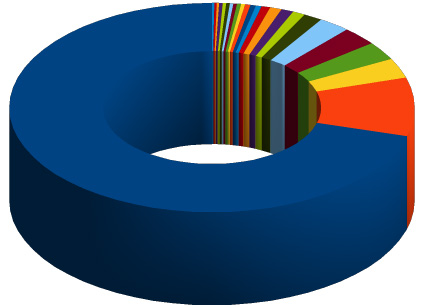
In this blog post I am going to teach you how to make one of these charts in a very quick and easy way! Hopefully after reading this, you will be on your way to making donuts in no time flat! IngredientsData – I am using backlink data taken from Majestic SEO. But you can use any data set that has anchor text included in the export. I like Majestic though because they tend to have a larger data set to play with, which allows for more fun in your spread sheet. OpenOffice Calc – You can use Excel as well, but I am a long time fan of open source software. Many of the steps in this post are almost identical to Excel, so you should be able to follow along at home if you don’t use Calc. Step 1: Collect DataThis is pretty straight forward. Make sure you export your data set into a format that Calc can read. To be safe I always chose CSV. Like I said before it doesn’t really matter where you get your link data, just make sure that anchor text is part of the data set. Step 2: Clean Up DataFor this type of analysis we are only focusing on anchor text, which means that any other data points that comes with in your data set, can be ignored. To make it super easy, I highlight the column that contains the anchor text and copy and paste it to a new sheet. This way you don’t have any other data points to distract you. Step 3: Create Pivot TableAfter your data is cleaned up, you will need to create the pivot table. This is the hardest part of the tutorial, but I am going to try and make it as easy as possible.
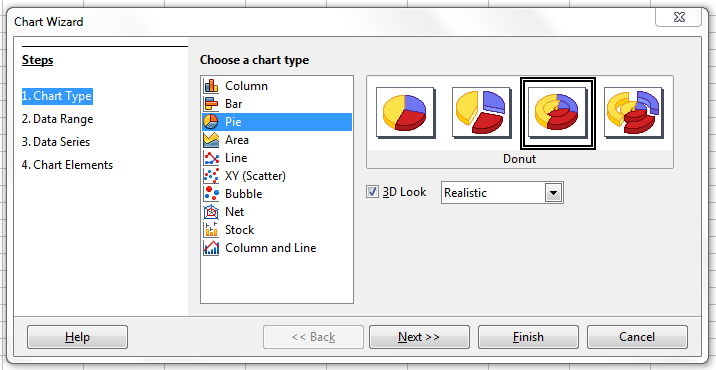
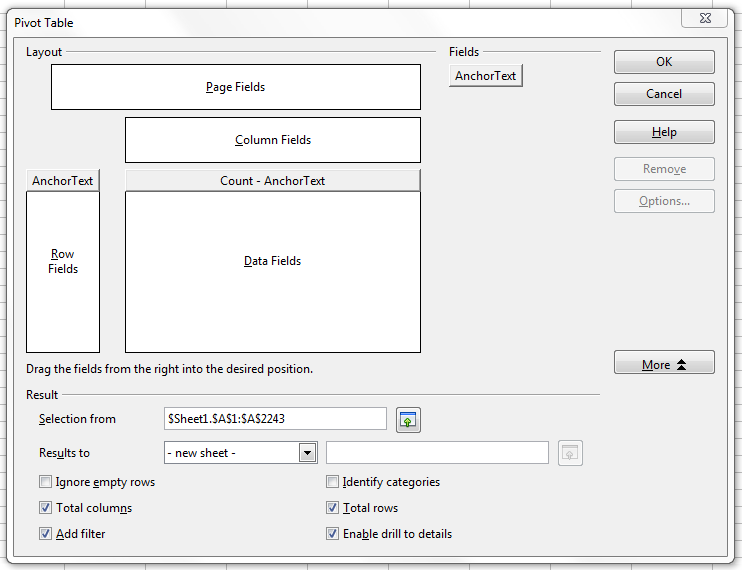 Click for larger view If your dialog box looks like the one above, go ahead and click OK, so we can move on to the next step. Step 4: Sort TableSo now that you have a pivot table with Column A holding anchor text, and Column B holding the number of times that text appears in the data set. In order to create the chart in the next step we need to sort the table so the top anchor text is at the top. To do this we are going to go to the menu Data > Sort… Within this dialog select Sort By > Column B > Descending. and then click OK. This should resort your table so that the most popular anchor text is at the top. Step 5: Create ChartThis is the fun part! Highlight the number of rows in column A and B that you want to include in your chart. For client reports I normally don’t go over 25 because it makes the legend harder to read, but if you want to experiment with different sets, go for it. Next go to menu Insert > Chart… Now of course the chart above is a doughnut chart, to get this you need to select Pie, and then Doughnut. But, you can have fun picking what ever you like. I like clicking the “3D Look” option so the chart doesn’t look so flat, but it will depend greatly on what looks best for your report. The post How To Get Anchor Text Distribution Using Pivot Tables and OpenOffice Calc appeared first on Internet Marketing Ninjas Blog.        |
| You are subscribed to email updates from Internet Marketing Ninjas Blog To stop receiving these emails, you may unsubscribe now. | Email delivery powered by Google |
| Google Inc., 20 West Kinzie, Chicago IL USA 60610 | |
